

Blog
Best Guide: IQOS ILUMA Not Charging or Blinking Red? Quick Fixes (2026)

Few things disrupt your routine faster than reaching for your heated tobacco device only to encounter a flashing warning light or an unresponsive battery. If your iqos iluma not charging issue is interrupting your day across Dubai, Abu Dhabi, or Sharjah, you are not alone. In this diagnostic guide, we detail proven hardware solutions to quickly resolve both charging failures and the dreaded iqos iluma blinking red indicator on all official IQOS ILUMA devices.
Whether you carry the flagship pocket charger or the unibody model, identifying the underlying error code is the fastest way back to smooth, blade-free induction heating. From thermal triggers common in the UAE climate to magnetic contact misalignments, most power faults can be resolved in under two minutes without requiring a service center visit.
Understanding the Light Signals: Red vs. White Flashing
Before starting troubleshooting, examine the exact behavior of the LED indicator bars on your pocket charger and holder:
Blinking Red Light (Holder or Charger)
Diagnostic FaultA persistent iqos iluma blinking red light signals an electronic fault, firmware freeze, or an operating temperature conflict. It indicates the Smartcore induction heating circuit has automatically shut down to protect the battery and internal components.
Blinking White Light (Slow or Fast)
Normal OperationSlow white pulsing means standard charging is in progress. However, rapid white blinking often indicates that the battery has depleted completely past its reserve threshold and requires sustained power before normal startup can resume.
Step 1: Perform a Hardware Soft & Hard Reset
A system reboot clears micro-controller cache glitches and is the most reliable first step when an iqos iluma not charging warning occurs.
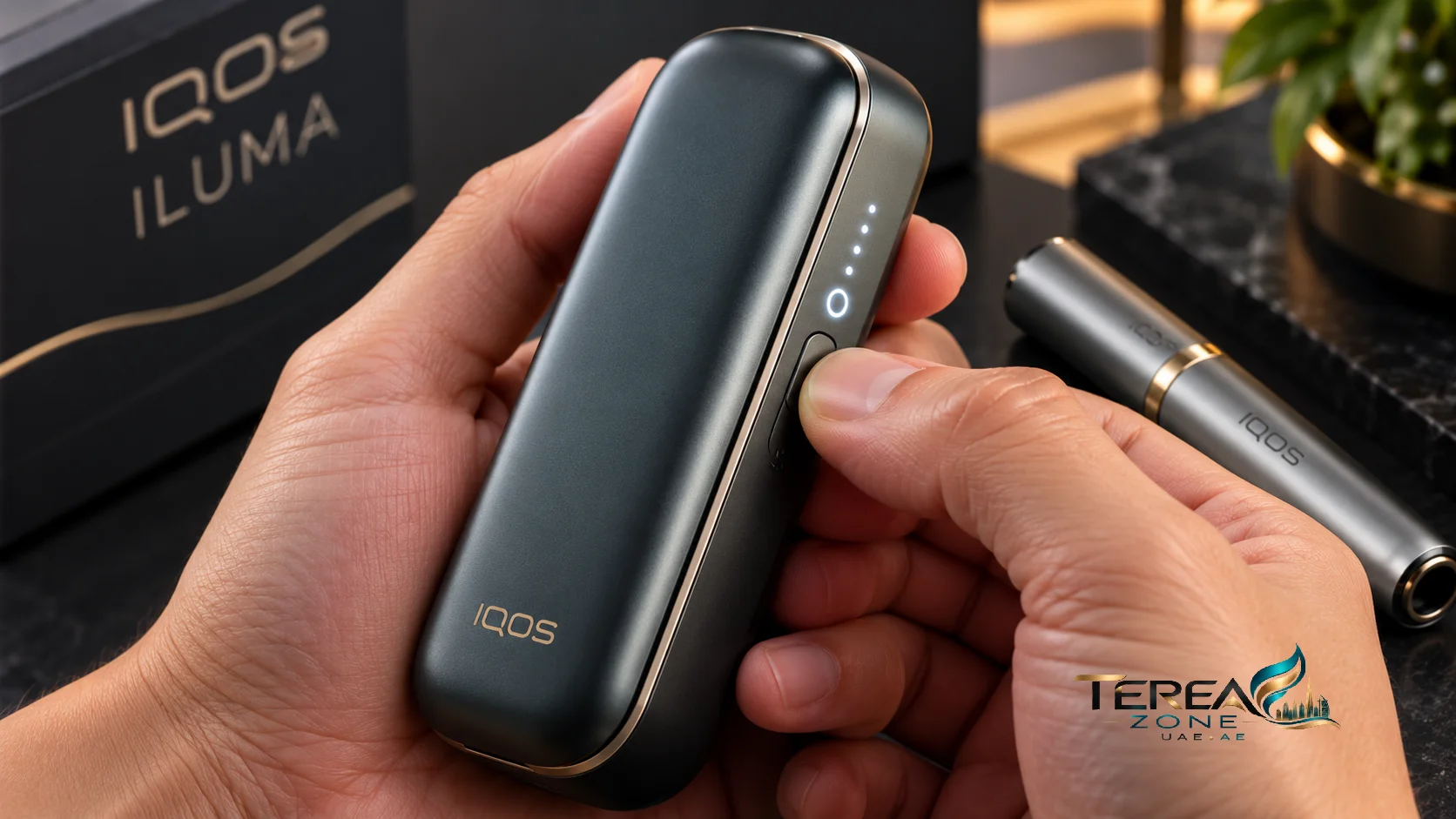
- Place the holder securely inside the pocket charger.
- Press and hold down the main pocket charger button for approximately 10 seconds.
- Keep pressing until all status LEDs fade out completely.
- Release the button. The LED lights will blink twice in white and gradually illuminate, confirming a successful hardware restart.
- For unibody models like the IQOS ILUMA i One, hold down the single chassis button for 10 seconds until the entire vertical LED bar turns off and pulses back on.
Step 2: Clean Gold Magnetic Contacts & USB-C Ports
Because the SMARTCORE INDUCTION SYSTEM™ relies on clean electrical delivery to maintain rapid dock-to-holder charging, micro-debris or pocket lint can disrupt connectivity.
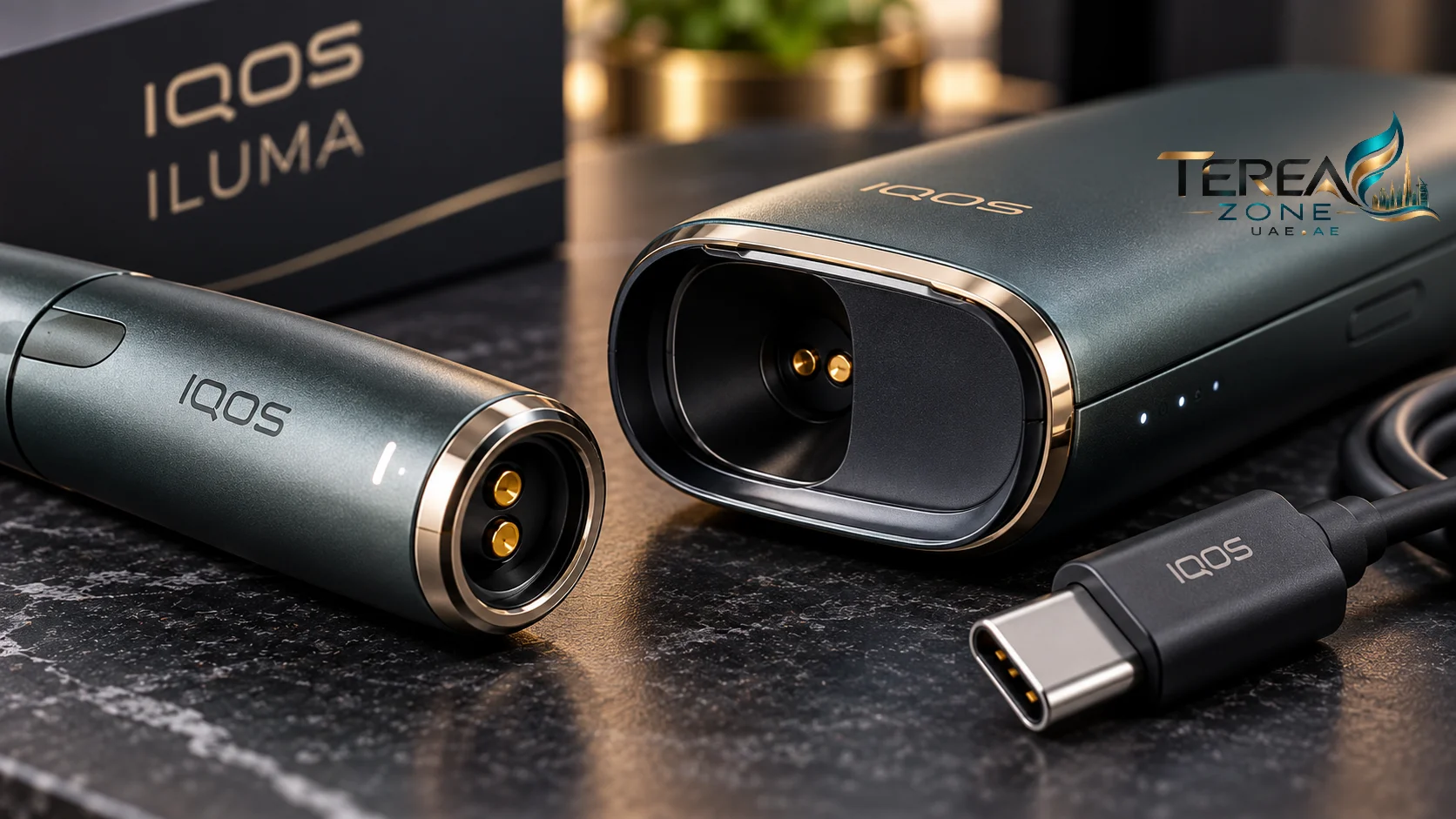
- Inspect the Base Pins: Check the gold-plated magnetic rings at the bottom of your holder. Wipe them gently using a dry microfiber cloth or a dry cotton swab without moisture or abrasive chemicals.
- Examine the Charger Well: Look inside the pocket charger charging chamber. Ensure no small debris or dirt is blocking the spring-loaded pins at the bottom.
- Clear the Type-C Port: Gently clear lint from the base USB-C port using a non-conductive wooden or plastic pick to ensure your cable seats flush against the frame.
Step 3: UAE Climate Temperature Regulation
Lithium-ion cells in the ILUMA family operate within a certified thermal range of 0°C to 40°C. In the UAE summer, leaving a device inside a parked vehicle or on a sunny balcony in Dubai will trigger an automatic thermal cutoff, resulting in an immediate iqos iluma blinking red status.
If your device has been exposed to extreme heat or direct sunlight, bring it inside an air-conditioned room and let it rest undisturbed for 20 to 30 minutes. Never attempt to refrigerate the device, as condensation can permanently damage internal induction circuitry.
Troubleshooting Matrix: Device-by-Device Fixes
Different form factors have specific points of failure. Review the breakdown below to pinpoint your exact model:
| Device Model | Common Symptom | Primary Cause | Recommended Solution |
|---|---|---|---|
| ILUMA i Prime | Holder not charging in dock | Fabric wrap gap or pin misalignment | Reseat holder firmly; ensure magnetic snap engages completely |
| ILUMA i Standard | Door closes but holder stays red | Dust buildup in side chamber | Clean lower spring contacts and conduct a 10-second button reset |
| ILUMA i One | Flashing red on button press | Deep discharge or low-power brick | Plug directly into an authentic 5V/2A wall block for 30 minutes |
Power Supply Requirements: Why Laptops and Car Chargers Fail
If you find your iqos iluma not charging despite using a functional cable, verify your power source. The pocket charger demands stable 5V / 2A (10W minimum) current. Charging from low-amperage laptop USB ports, unpowered USB hubs, or loose 12V car adapters often causes erratic battery behavior and charging halts.
Always connect your device directly to an authentic wall adapter and high-grade Type-C power delivery cable. Allow an exhausted battery at least 20 continuous minutes on wall power before attempting to turn it back on. To explore how power management has improved across the newer generation, read our complete IQOS ILUMA i series review.
When Hardware Fails: Upgrading Your Setup
If repeated hardware resets, contact cleanings, and wall charging tests fail to clear the iqos iluma blinking red signal, the internal lithium cell or Smartcore induction coil may have suffered permanent physical or liquid degradation.
In such instances, upgrading to a fresh, genuine model ensures continuous access to your favorite TEREA tobacco sticks without interruptions. Our store supplies 100% authentic, sealed devices with immediate courier dispatch across all seven Emirates.
Need Fast Hardware Replacement in Dubai?
Experiencing persistent device errors? Explore genuine, brand-new IQOS ILUMA kits with 1-hour priority delivery in Dubai and same-day shipping across the UAE.
Get Instant Device Support on WhatsApp